Help ·
Keyboard shortcuts for reading and listening to the Quran
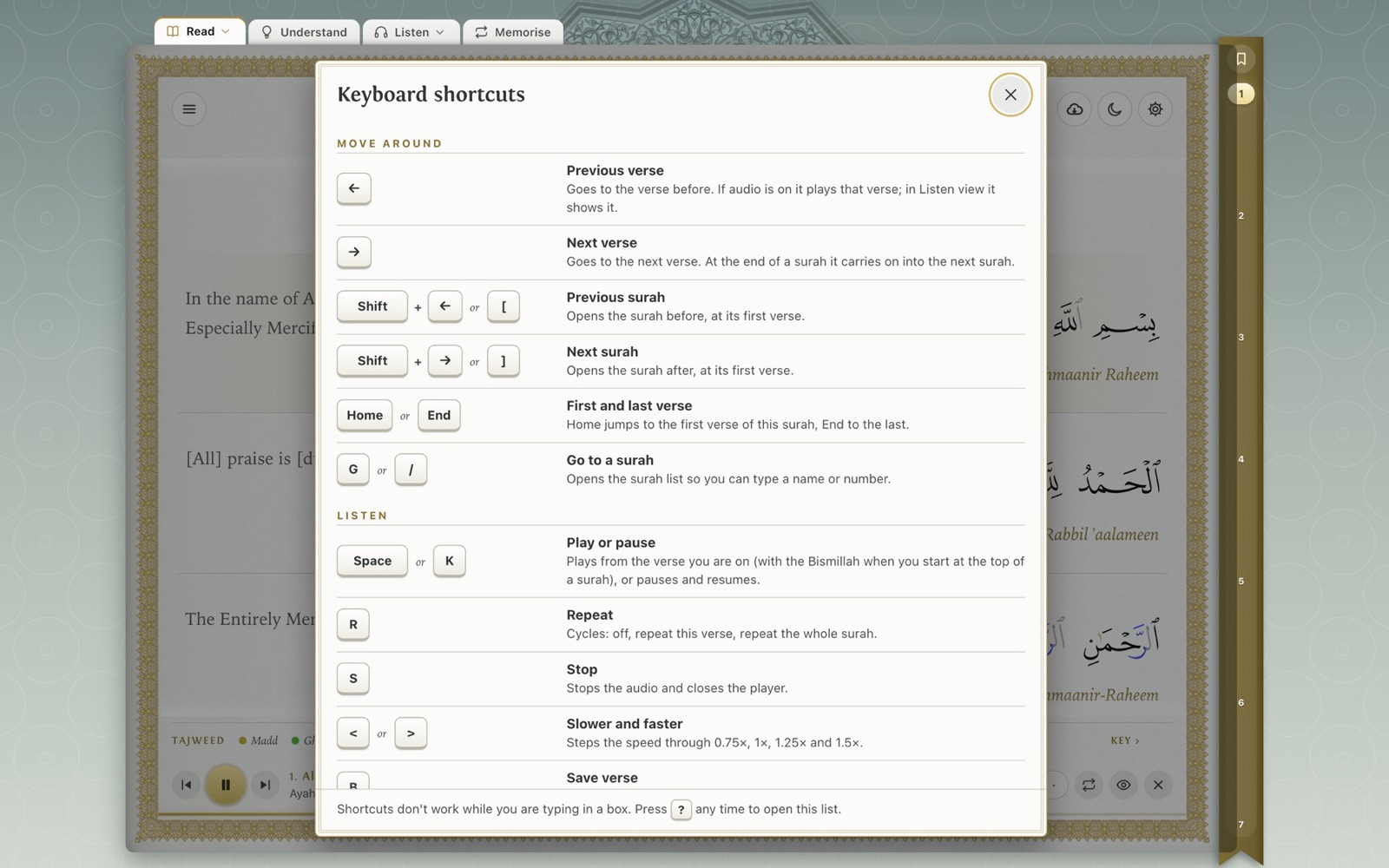
On a computer you can read and listen to the whole Quran on Global Quran without touching the mouse. Press ? at any time to see this list on screen. The shortcuts work on the website and in the Mac app; they pause while you are typing in a search box.
Move around
| Keys | What it does |
|---|---|
| ← / → | Previous or next verse. At the end of a surah it carries on into the next one. |
| Shift+← / Shift+→ or [ / ] | Previous or next surah, at its first verse. |
| Home / End | First or last verse of this surah. |
| G or / | Go to a surah: type its name or number. |
Listen
| Keys | What it does |
|---|---|
| Space or K | Play or pause from the verse you are on (with the Bismillah at the top of a surah). |
| R | Repeat: off, this verse, the whole surah. |
| S | Stop and close the player. |
| < / > | Slower or faster: 0.75×, 1×, 1.25× and 1.5×. |
| B | Save the verse, or remove it from your saved verses. |
| C | Copy the verse: the Arabic, the translation and the reference. |
View and settings
| Keys | What it does |
|---|---|
| 1 2 3 | Verse by verse, reading view, or Listen (one verse at a time). |
| M | Reading mode picker: Read, Understand, Listen, Memorise. |
| F | Focus: hide the menus. Press again for full screen, again to go back. |
| T | Tajweed colours on or off. |
| D | Day or night look. |
| + / − | Larger or smaller Arabic and translation text. |
| ? | Show or hide the shortcuts. |
| Esc | Close the open panel, menu or full screen. |
A few combinations worth knowing
- Memorising a verse: go to it with the arrows, press Space, then R once to repeat it and < to slow it down. More in how to memorise the Quran.
- Reading at night: D for the night look, F to hide everything but the page, + for bigger text.
- Sharing: C copies the verse with its translation and reference, ready to paste in a message.
Accessibility
Every button has a name for screen readers, the real Arabic words are read out behind the mushaf lettering, focus is always visible, and the page respects "reduce motion" and high-contrast settings.
See also: translations and languages and reading offline.